When to use this
The Update playlists task assumes the songs you need are already in the library and you can search for them by number. If the bulletin lists a song you can't find, this is how you add it. Once it exists, you can drop it into the AM or PM playlist normally.
Create a new presentation
In ProPresenter, hit Ctrl + N (or click the + at the top of the Library panel and pick New Presentation).

Fill in the new presentation dialog
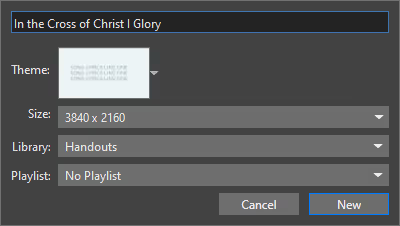
A small dialog opens. Set:
- Title — the song title, exactly as you want it to appear
- Theme — pick our standard lyrics theme
- Size — leave at the default (3840 x 2160)
- Library — pick the right library for the song (Handouts is the usual home for one-off songs)
- Playlist — leave as No Playlist. You'll add it to AM or PM separately.
Click New.
Add the lyrics
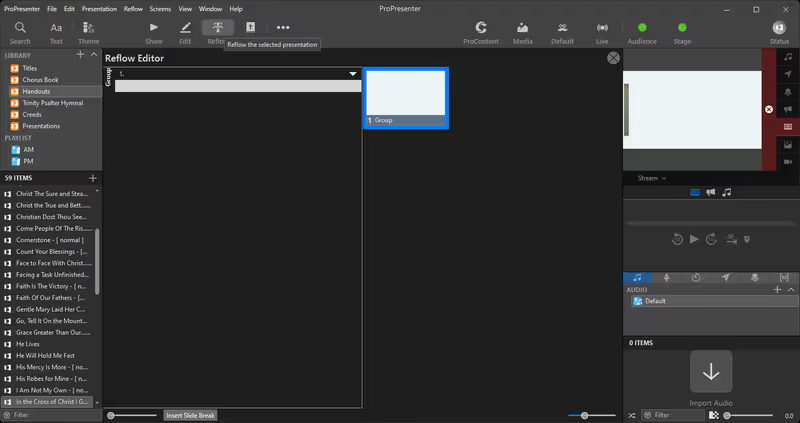
The Reflow Editor opens with a single empty slide group. Paste or type the lyrics in.
Use Insert Slide Break at the bottom to separate verses, choruses, bridges — anywhere you want a new slide.
When you're done, close the Reflow Editor. The song is saved automatically and now lives in the library you chose.
Next step
Once the song exists in the library, head back to the Update playlists task and add it to AM or PM along with the rest of this week's items. You can search for it by title.
If something's off
- Reflow Editor won't take a paste: click into the slide group first to focus it, then paste again.
- Can't find the song after saving: check the Library dropdown in the sidebar — if you filed it under Handouts, it'll be there. The library you picked in step 2 is where it lives.
- Lyrics formatting looks broken: that's usually a copy-paste artifact (extra line breaks, Word formatting). Try retyping or pasting as plain text.