Why this matters
The AM and PM playlists in ProPresenter carry over from week to week. Most of the order of service is the same every Sunday, but the songs and a few other slides change. Your job here is to line up the playlists with what's actually happening this Sunday.
Open the AM playlist
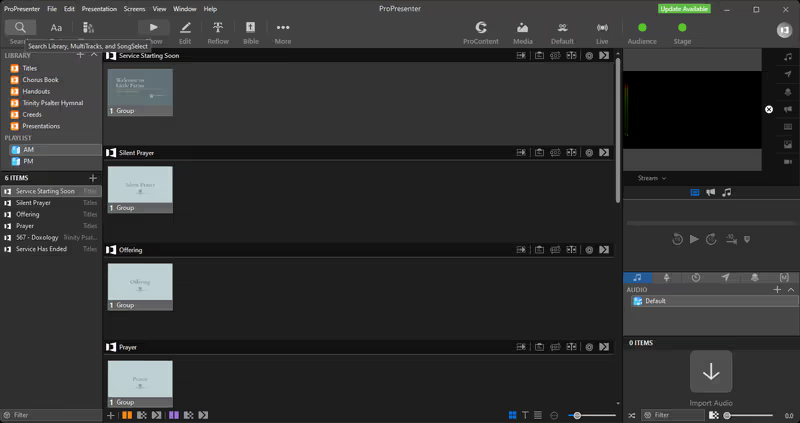
In the left sidebar under PLAYLIST, click AM. The playlist's current items show up in the panel below. You'll do PM the same way after this is done.
The standing items (Service Starting Soon, Silent Prayer, Offering, Prayer, Doxology, Service Has Ended) live in the playlist permanently. Don't remove those.
Remove last week's items
Look down the playlist for anything that isn't in this Sunday's order of service. Right-click and remove it (or select it and hit Delete). Leave the standing items alone.
Add this week's items
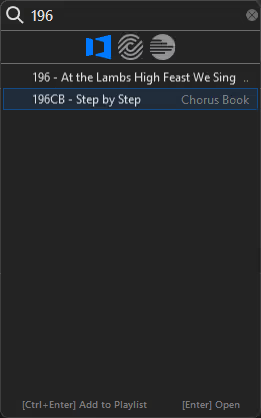
Click the search icon at the top-left (or just start typing). Type the hymn number from the bulletin.
- Trinity Psalter Hymnal hymns: just the number (e.g.
196) - Chorus Book entries: the number with
CBon the end (e.g.196CB)
Press Ctrl + Enter to add it to the playlist. Enter alone just opens the song without adding it.
You can also drag a result straight from the search popup into the playlist if you'd rather click than use the keyboard.
Arrange in order
Drag items up or down so the playlist matches the bulletin's order top to bottom.
Do the same for PM
Click PM in the sidebar and run through the same cleanup, add, and arrange flow against the PM section of the bulletin.
If something's off
- Title graphics look weird (wrong font): close and reopen ProPresenter, sometimes that re-pulls the fonts. If it still looks off, flag a tech and keep going.
- Search isn't finding a song: double-check the number against the bulletin. If it's a Chorus Book entry, make sure
CBis on the end. If the song genuinely isn't in the library, see Add a new song to ProPresenter.