Why this matters
YouTube doesn't keep a "permanent" live stream that just runs every week — each Sunday you spin up a new one. The new Blackmagic 4K streamer pushes directly to YouTube using a stream key that's already configured, so all you're doing here is creating a fresh live entry in YouTube Studio and giving it the right title before you start the broadcast.
Open YouTube Studio
Go to studio.youtube.com and log in if you're not already. If it asks for credentials, use Keeper to fill them in.
You'll land on the channel dashboard.
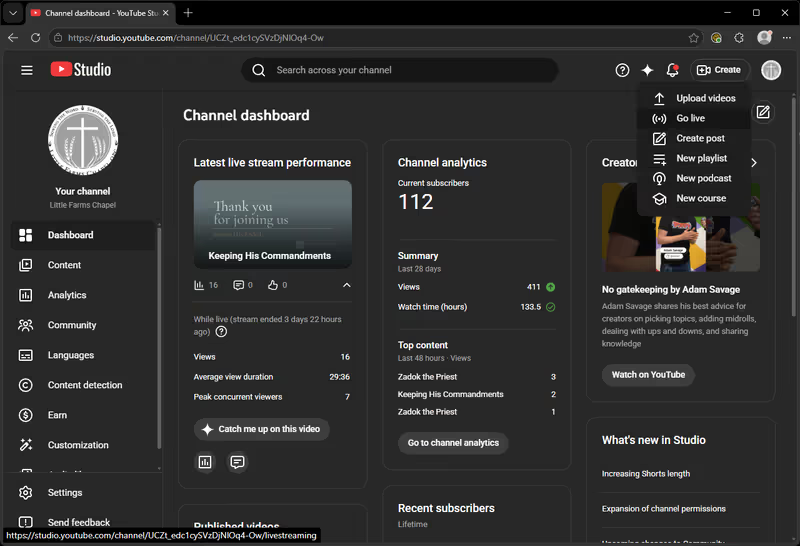
Click Create, then Go Live
Top right of the page, click Create. A small menu drops down — pick Go Live.
YouTube takes you to the Live streaming page. The stream key is already set to LFC Service at the top — leave that alone. You'll see the current title displayed (probably last week's) with an Edit button next to it.
Leave this tab open — you'll come back to it when you go live.
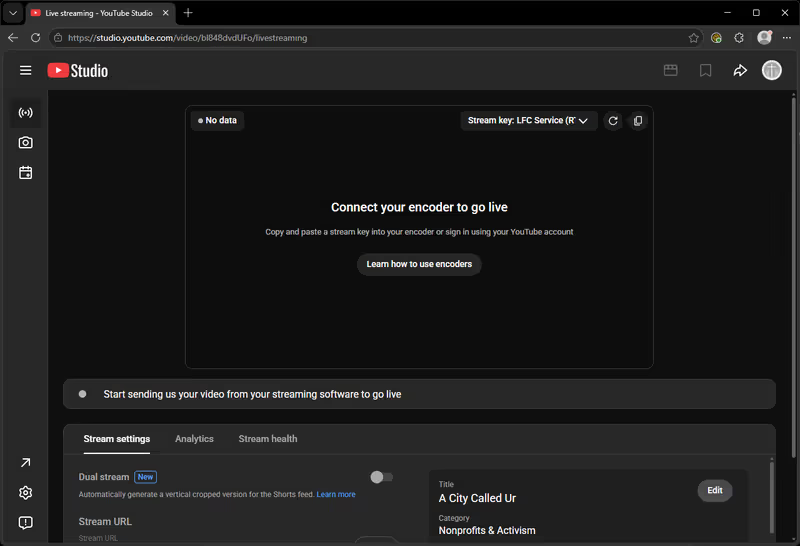
Update the title and save
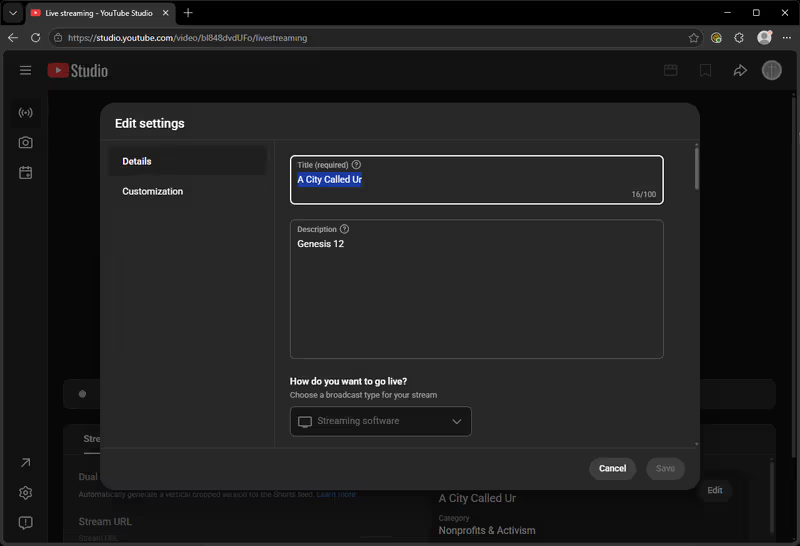
Click Edit on the title card. The Edit settings dialog opens.
Update the Title field with this week's sermon title from the bulletin. Leave Description and the other fields alone unless we've established something different.
Click Save.
Repeat before PM
Same drill before the PM service: come back to studio.youtube.com, Create → Go Live, edit the title for the second service, save.
If something's off
- Not logged in: sign in via Keeper. If Keeper doesn't show an entry, flag a tech.
- Stream key isn't "LFC Service": don't change it. Flag a tech.
- Save button is greyed out: make sure you've actually changed the title field. The button activates after edits.