Why this matters
This is the moment the service goes from "getting ready" to "on air." From the first button press through the closing postlude, you're running the show — switching cameras and graphics from the Stream Deck, with a watchful eye on stream health. Knowing what to do if something drops (and what NOT to do) keeps the recording safe and gives the streams the best chance to recover on their own.
Press the three Go Live buttons on the Stream Deck
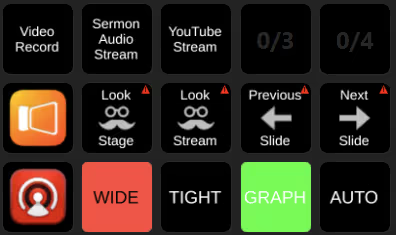
Top row of the Stream Deck. Press them in order, one at a time:
- Video Record — starts the local recording
- SermonAudio Stream — starts broadcasting to SermonAudio
- YouTube Stream — starts broadcasting to YouTube
When each one is running, the button changes color so you can see at a glance which streams are active. If a button doesn't change state, press it once more.
Verify each stream is live
The button colors are a useful signal but not the final word. Switch to the two browser tabs you left open from Setup and confirm each stream is actually broadcasting:
- YouTube Studio tab — the encoder status should flip from "Connect your encoder" to Live, the preview window starts showing video, and frames are flowing.
- SermonAudio webcast tab — the page should show the webcast as broadcasting.
If either one isn't live after thirty seconds or so, head to step 5 below.
Run cameras and graphics from the Stream Deck
The Stream Deck is your live control surface during the service.
Bottom row — ATEM switcher inputs:
- WIDE and TIGHT — the two camera angles
- GRAPHICS — the ProPresenter feed
- AUTO — the transition trigger
When you press an input (Wide, Tight, or Graphics), that source goes to Preview. It's not on air yet. Hit AUTO to transition Preview onto Program. That way you can confirm the shot looks right before it goes live.
Middle row, right side — ProPresenter slide controls:
Previous Slide and Next Slide. When you're moving between items in the playlist (between songs, etc.), hit Next twice. The first press lands on the blank between groups. The second moves into the first slide of the next item.
Keep an eye on stream health
Glance at the two dashboard tabs every few minutes:
- YouTube Studio — should still show Live, with frames flowing
- SermonAudio webcast — should still show broadcasting
A quick check is enough. You're watching for the indicator dropping out, not staring at numbers.
If a stream drops
Stay calm — most drops recover on their own.
- One stream is down (YouTube or SermonAudio): probably a service issue on their end. Give it 30 to 60 seconds. The dashboard should flip back to Live without you doing anything.
- Both streams are down at the same time: more likely an internet outage from our side. Nothing to do from the booth except wait it out.
- Either one stays down longer than a couple of minutes: flag a tech.
Through all of this, don't stop the recording and don't restart the computer. See the callout at the top of this page.
How the streams actually work
A bit of context that explains why some of the rules above exist:
- The HELO encoder is a separate piece of hardware that handles SermonAudio plus the local recording.
- The Blackmagic 4K streamer is also separate hardware, and it handles YouTube.
- The booth computer runs ProPresenter and the Stream Deck — graphics and control. It doesn't create the streams.
That's why restarting the computer mid-service doesn't help with a dropped stream, and why the recording keeps going even if the computer or one of the streams hits trouble.