Why this matters
Each sermon gets its own page on lfcopc.org so visitors can read along, watch, or listen. The sermon entry pulls the SermonAudio video and audio in via the ID we copied in the last task, and the chapter text from our bible repo gives readers the passage right alongside the sermon.
You'll do this twice on Sunday — once after each service, with that service's SermonAudio ID and chapter text.
Open the WordPress admin and log in
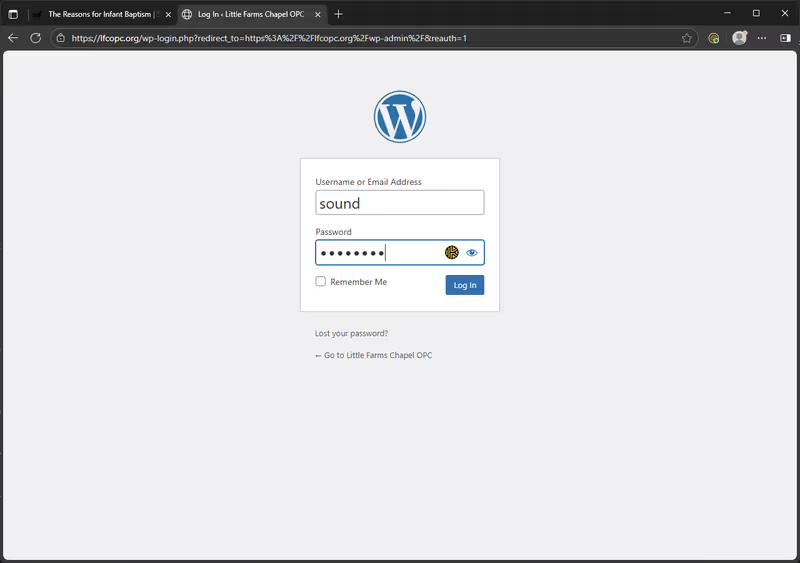
Go to lfcopc.org/wp-admin. If you're not already logged in, you'll see the WordPress login page.
Use Keeper to fill in the credentials (the username is sound).
Start a new sermon
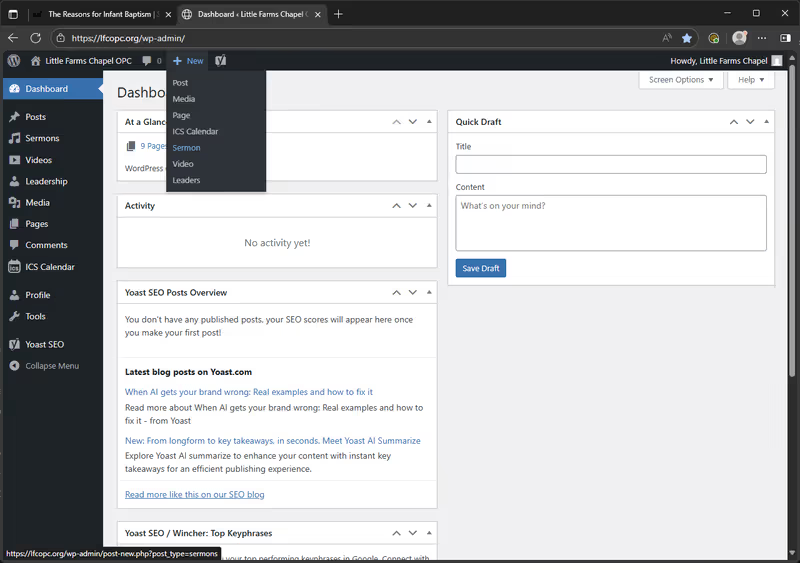
From the dashboard, hover over + New in the top toolbar, then pick Sermon from the dropdown.
Fill in the sermon details
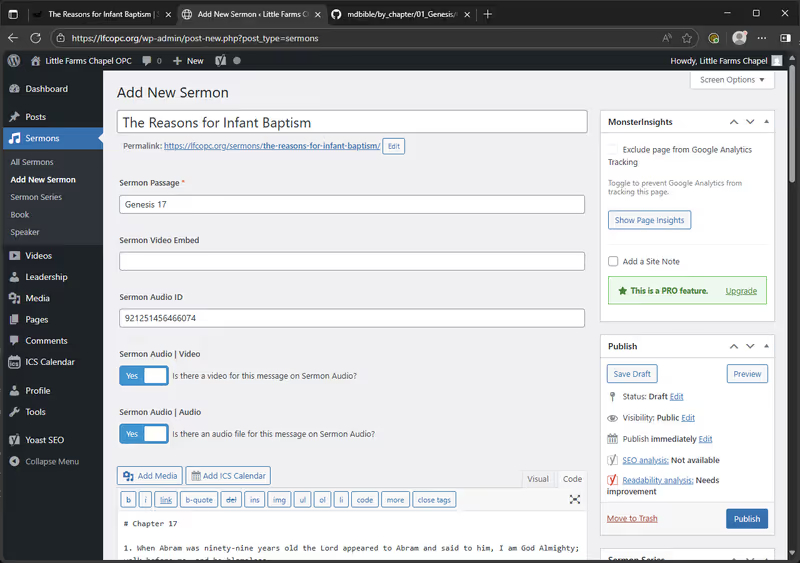
Five fields to fill in on the Add New Sermon page:
- Title — the sermon title, typed from the bulletin
- Sermon Passage — the scripture reference, also from the bulletin (e.g.
Genesis 17) - Sermon Audio ID — paste the ID you copied from the last task
- Sermon Audio | Video — toggle to Yes
- Sermon Audio | Audio — toggle to Yes
Leave the Sermon Video Embed field empty.
Paste the chapter text into the body
The body of the sermon entry holds the full chapter being preached on, copied from our bible repo.
- Open github.com/lguenth/mdbible/tree/main/by_chapter in a new tab.
- Click into the book folder (e.g.
01_Genesis), then click into the chapter file (e.g.Genesis_17). - Click the Raw button at the top-right of the file viewer to get the plain markdown.
- Select all (
Ctrl + A), copy (Ctrl + C). - Switch back to the WordPress sermon editor and paste into the body area below the toggles.
Publish
Right sidebar, Publish panel — click the blue Publish button.
The sermon entry is now live on lfcopc.org.
Repeat after PM
Same flow after PM: new sermon entry, fill in PM's title/passage/ID, paste PM's chapter text, publish.
If something's off
- Not logged in / Keeper doesn't show an entry: flag a tech.
- Lost the SermonAudio ID: open the Publish on SermonAudio task to grab it again from the Sermon Editor.
- Can't find the chapter file in the bible repo: double-check the bulletin's passage spelling. If the chapter genuinely doesn't exist in the repo, flag a tech.
- Publish button does nothing: make sure the Title, Sermon Passage, and Sermon Audio ID fields are filled in. If they are and it still won't publish, flag a tech.