Why this matters
The webcast goes off the air when the service ends, but it's not yet a published sermon — it's just an archived recording. Publishing it makes the sermon available on SermonAudio.com, and the ID SermonAudio assigns is what we'll paste into lfcopc.org in the next task to embed the sermon on the website.
You'll do this twice on Sunday — once right after AM service, once right after PM.
Add the just-ended webcast to a new sermon draft
Switch back to the SermonAudio tab. Refresh the page if it still shows the live state.
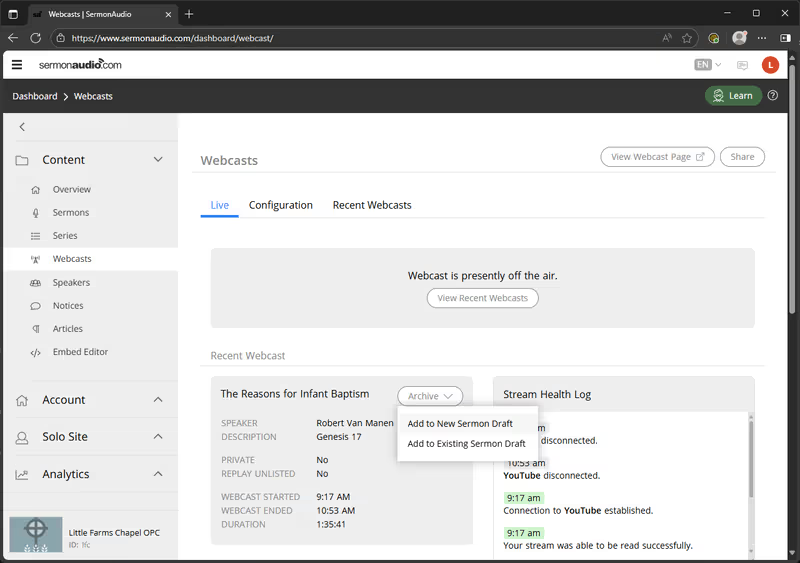
Scroll down to the Recent Webcast panel. The webcast you just ran is sitting there with the title, speaker, start/end times, and duration.
Click the Archive dropdown next to it and pick Add to New Sermon Draft.
Add the media as-is
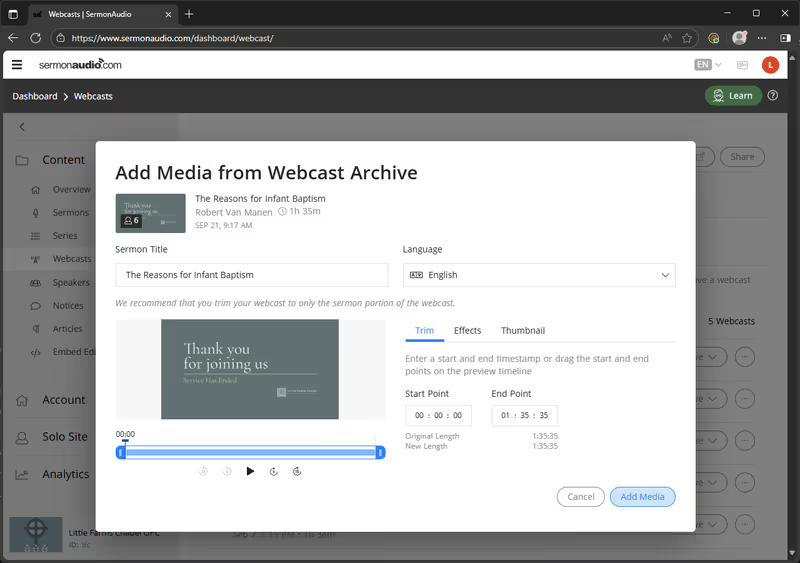
The Add Media from Webcast Archive dialog opens with the title and speaker already filled in.
SermonAudio recommends trimming, but we publish the full webcast — leave the start and end points alone. Just click Add Media.
Open the draft in the Sermon Editor
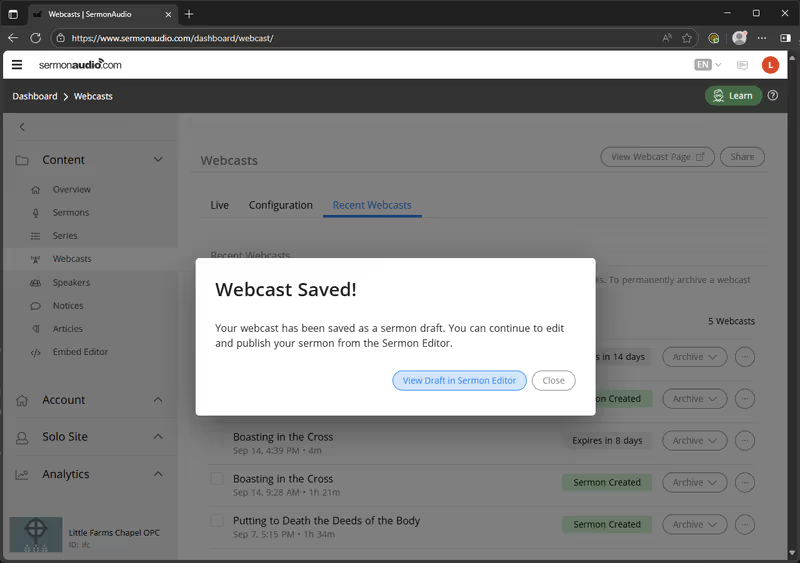
A Webcast Saved! confirmation appears. Click View Draft in Sermon Editor.
You'll land on the Sermon Editor with the title, speaker, and description already pulled from the webcast. There's nothing to change here — the bulletin info we set during Setup carries through.
Publish
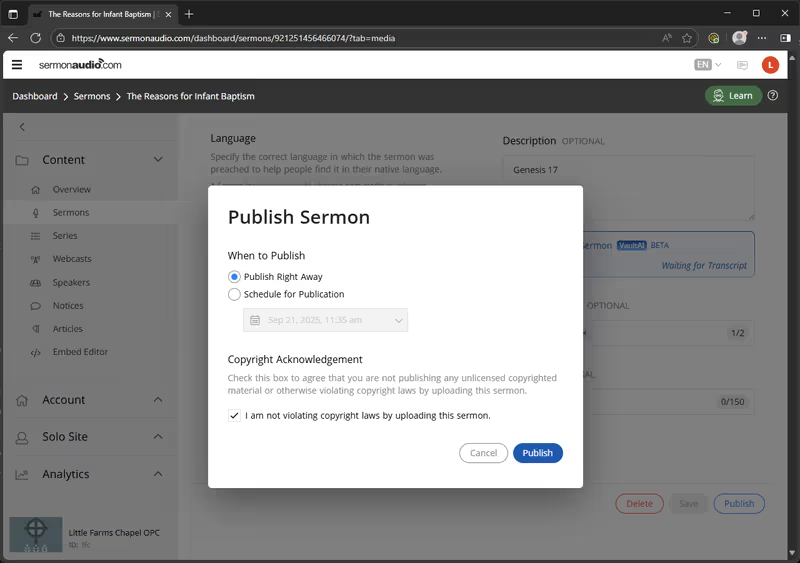
Bottom-right of the Sermon Editor, click Publish. A Publish Sermon dialog opens.
Defaults are fine — Publish Right Away is selected and the copyright box is checked. Click Publish in the dialog.
Copy the sermon ID
A Sermon Published! confirmation appears with share options. Close it.
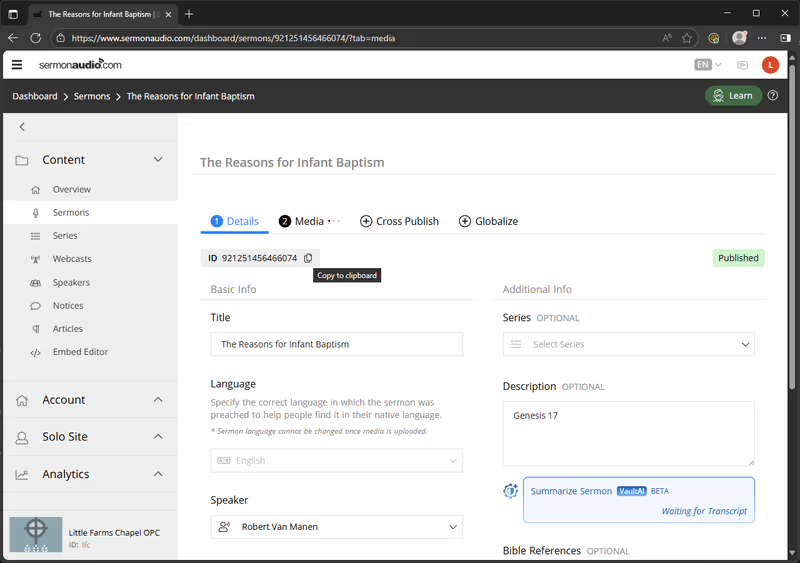
Back on the Sermon Editor, you'll see the ID under the sermon title with a copy icon next to it. Click the copy icon — that's the ID you'll paste into lfcopc.org in the next task.
Repeat after PM
Same flow after PM service ends: refresh the webcast tab, find the new Recent Webcast, add to a new draft, publish, copy the ID.
If something's off
- Recent Webcast section is empty: refresh the page. If it's been more than a minute or two and still nothing's there, flag a tech.
- Publish button is greyed out: check that the title and speaker fields are filled in (they should already be from the webcast metadata). If they're empty for some reason, flag a tech.
- Lost the ID before pasting it into lfcopc.org: open the sermon again from Sermons in the left sidebar — the ID is at the top of the editor.